Knowledge Base
Stata 101:
The Epidemiologist's Interface
Last Updated: 5 April 2026 • Environment: Stata 18 SE
Stata is one of the primary statistical environments used in epidemiology, public health, and health services research. It has a consistent command structure and a do-file system that makes reproducibility straightforward rather than optional. This guide introduces the interface, explains the do-file editor, and takes you through the first commands every epidemiologist needs to understand a dataset.
1. The Anatomy of Stata
Stata's layout is deliberately constrained. The interface uses four windows, each serving a fixed purpose. Learn what each one does and you will understand how Stata expects you to work.
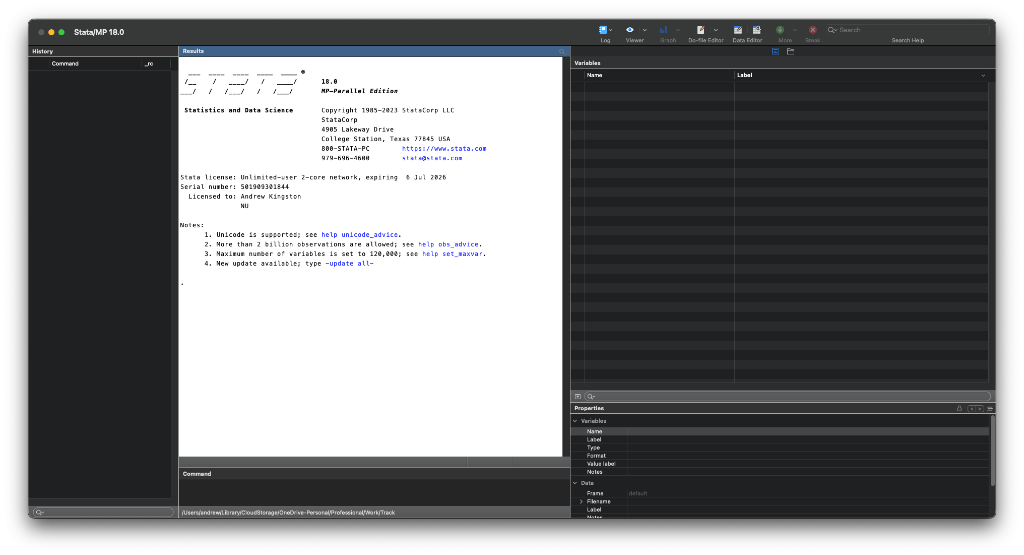
- The Results Window (Main Canvas): A scrolling log where Stata calculates your models, prints tables, and shows red error messages if your data is formatted incorrectly.
- The Command Window (Bottom): The terminal where you type isolated commands. This is useful to explore data quickly, but you should never use it for publishable analysis.
- The Variables Window (Top Right): A live list of every variable currently loaded in memory, its datatype, and attached labels.
- The Review / History Window (Left): A running ledger of every single action you have executed inside the session. If you accidentally run a command in the window, you can copy it from here.
2. The Golden Rule: The Do-File Editor
As an epidemiologist handling thousands of sensitive health records, reproducibility is the foundation of your work. We do not click buttons in dropdown menus.
Every single action, from loading the raw dataset to recoding categorical variables to running the final regression model, must be written sequentially in a Stata script. This is called a Do-File (.do).
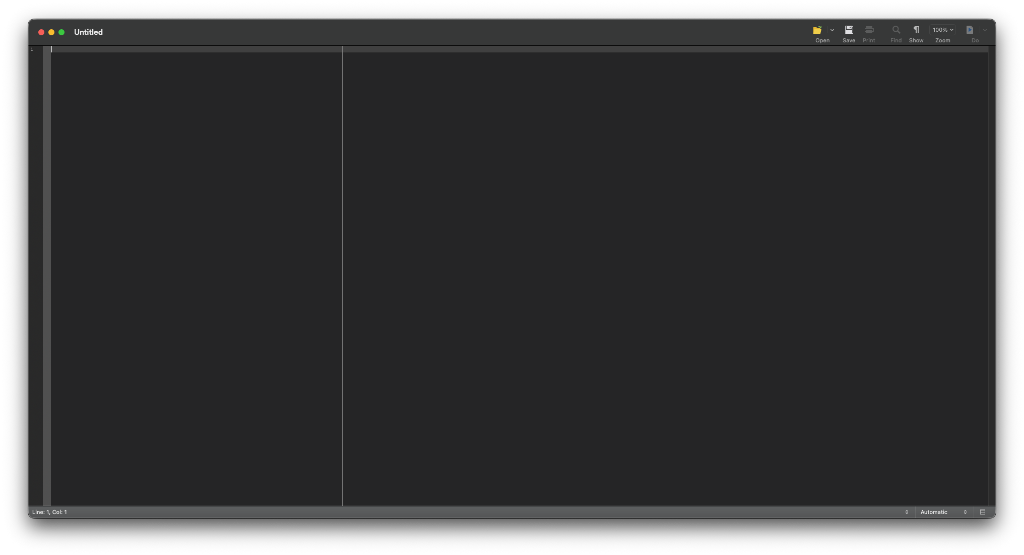
Do-File Editor
Open the Do-File editor by typing doedit in the command window. Write your code here. Highlight it and click the Execute (Do) button to run it. This saves your entire pipeline so colleagues can review it and peer reviewers can audit it.
3. Getting to Know Your Data
Before you run a single hazard ratio or logistic regression, you must intimately understand the shape of your cohort. Let us load a dataset directly into memory to understand the flow. Stata provides built-in health datasets for learning. We will use the bplong dataset, a hypothetical patient cohort tracking blood pressure over time.
Download the Companion Do-File
I have prepared a heavily annotated Stata script (.do) that mirrors the exact workflow below. Download it, open it in Stata, and highlight the code blocks step-by-step to follow along natively.
Type this directly into your Do-File and execute it block by block:
* 1. Clear memory before starting
clear all

* 2. Load the built-in blood pressure dataset (sysuse grabs system datasets)
sysuse bplong

* 3. Describe the schema of the dataset
describe
The describe command tells you immediately how many observations exist and what variables are available. But it does not tell you if the data is messy. When loading real clinical data, your very first check should always be the codebook command.
* Get a granular breakdown of every variable, including missing values
codebook
codebook is arguably the most powerful exploratory tool in Stata. It prints a detailed report for every variable, showing the distinct unique values, the number of missing observations, and any text labels attached to numeric categories (like 1 = "Male", 2 = "Female").
Once you are satisfied your data is clean, you can generate summary statistics for continuous variables (like age or BMI) using the summarize command:
* Generate full summary statistics for the continuous blood pressure variable
summarize bp, detail
Alternatively, if you are looking at categorical epidemiological risk factors (like smoking status or Townsend deprivation quintiles), you need to look at cross-tabulations. We achieve this with tabulate (or simply tab for short):
* Generate a frequency table for patient sex
tabulate sex

* Generate a cross-tabulation of sex against age group, including row percentages
tabulate sex agegrp, row
Quick Tip: Syntax Logic
Stata commands follow a consistent structure: [command] [variables], [options]. The comma separates what you want Stata to do from the options that control how it does it, such as adding , detail or , row.
Further Resources
You do not need to memorise every command. Good documentation is part of the workflow. These are the most useful places to start:
- Official Stata Cheat Sheets (PDF)
Authored by Dr. Tim Essam and Dr. Laura Hughes, these are universally recognised as the best quick-reference guides for Stata. From data processing to statistical graphics, download these PDFs and pin them to your wall.
- UCLA OARC Stata Web Books
The quintessential online university repository for learning Stata. If you want to know exactly how to run an ANOVA or process a longitudinal string dataset, UCLA provides an exact guide to do it.